- Home
- /
- Article

Thanks for your feedback.


 In this article
 Feedback?
Keep up to date with your devices by setting up alerts. With device alerts, you can view all important events and updates in one place.
Create rules to receive alerts
You can configure alerts to be delivered through email, webhooks, or in a Webex App space. Regardless of the delivery channel configured, all alerts will always appear in Control Hub. Read more about Alert center and alerts.
For devices, you can create rules to get alerts for:
-
Offline and online events: An event is registered after a device has been offline for approximately 5 minutes or has come back online for approximately 5 minutes ago.
-
Issues that are detected or resolved events: You can select if you want to receive all alerts or mute the ones that you don't wish to receive.
-
RoomOS operational alerts: Receive alerts on bugs and security-related information, and changes to release dates.
-
Software version expiry: When you’re using Advanced Software Control, you can set an alert to be explicitly notified when their devices are running a software version that is about to go out of support.
| 1 |
Sign in to Control Hub at https://admin.webex.com and select which option to follow. |
| 2 |
From Service select Devices. Then select the Type and Severity level. You can give the alert a Title to make it easier to recognize. If you choose a Webex App space as a deliver method, the title is used as the name for that space. 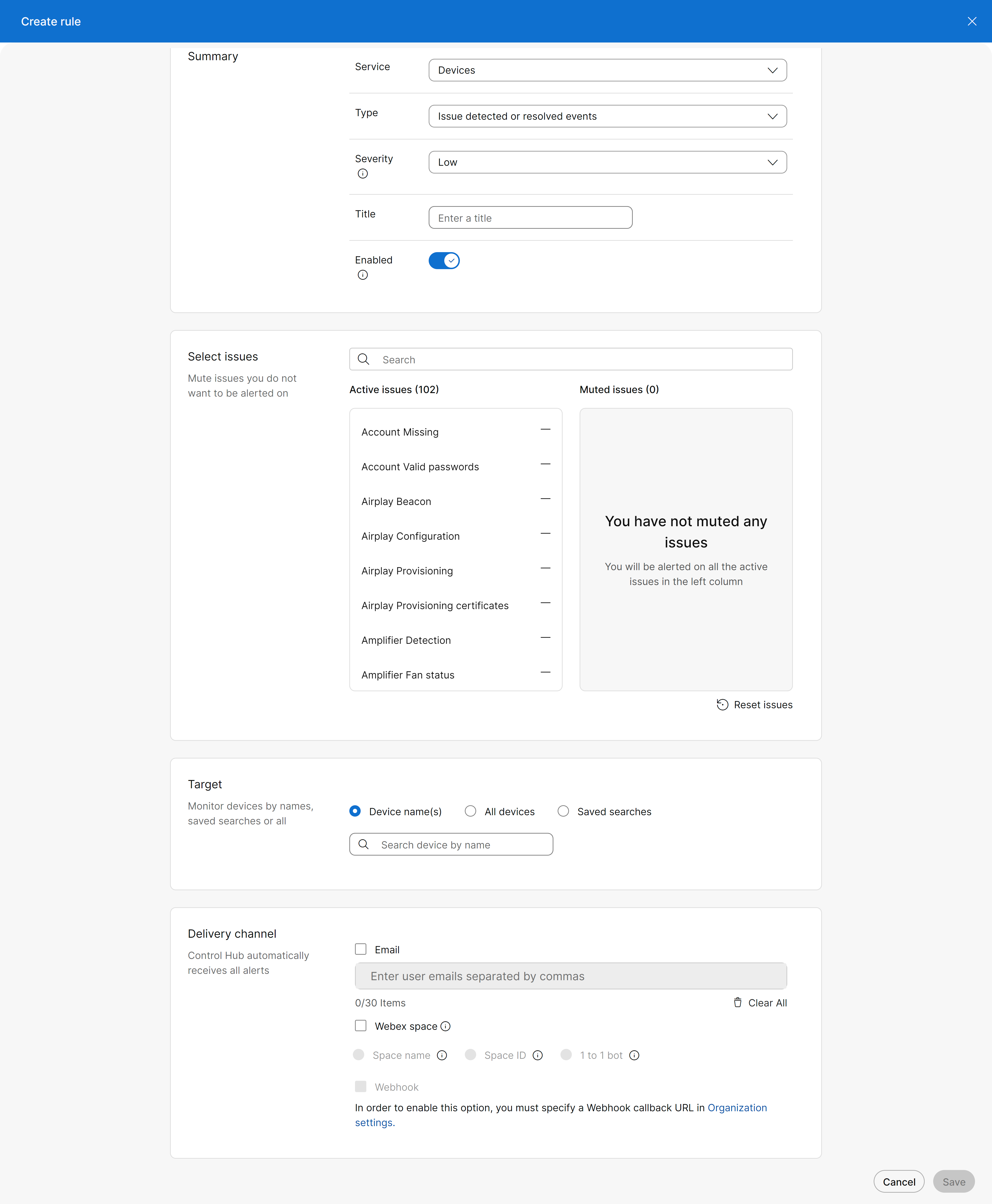
|
| 3 |
Select the devices that you want to receive alerts from.
If you have selected one or more devices from the Devices page, the devices names show up here automatically. |
| 4 |
If you are setting the alert for Issues detected or resolved events, you can choose to mute alerts you don't want to receive. Click the minus (-) icon next to the name in the Active issues list to move the issue to the Muted issues list. To move an issue back to the Active issues list, click the plus (+) icon next to the issue in the Muted issues list. |
| 5 |
Choose the delivery channel that you want to use to receive the alerts. Choose between Email, Webex App space, Webhook, or a combination. To use the Webex space option, you must enable bots. To use the webhook option, you must enable webhooks for alerts. Note that the webhook payload should be included in a webhook envelope payload and be within the 'data' property of the webhook payload. Read more about Handling requests from Webex. |
| 6 |
Click Save to create the rule. You can find the rules you’ve created under the Manage tab. If you want to delete a rule you’ve created, select the rule, and click Delete rule. |
Webhook parsing examples
Online and offline events
{
  "id": "<base64_id>",
  "name": "controlHubAlerts",
  "targetUrl": "<configured_webhook_url>",
  "resource": "controlHubAlerts",
  "event": "created",
  "orgId": "<base64_id>",
  "createdBy": "<base64_id>",
  "appId": "<base64_id>",
  "ownedBy": "org",
  "status": "active",
  "created": "1970-01-01T00:00:00.000Z",
  "data": {
    "summary": "<alert_summary>",
    "severity": "<HIGH | MEDIUM | LOW>",
    "emailIds": null,
    "notificationAttributes": {
      "RULE_NAME": "<rule_name>",
      "ORGANIZATION_NAME": "<org_name>",
      "deviceId": "<base64_id>",
      "deviceName": "<device_name>"
    },
    "overrideExistingSubscriptionRecipients": false,
    "actionUrl": "https://admin.webex.com/devices/view/<device_id>",
    "type": "Devices",
    "orgId": "<id>",
    "audit": false,
    "callbackUrl": null,
    "notificationId": "<id>",
    "subType": "Offline and online events",
    "ruleId": "<id>",
    "category": null
  }
}
Issues detected and resolved
{
  "id": "<base64_id>",
  "name": "controlHubAlerts",
  "targetUrl": "<configured_webhook_url>",
  "resource": "controlHubAlerts",
  "event": "created",
  "orgId": "<base64_id>",
  "createdBy": "<base64_id>",
  "appId": "<base64_id>",
  "ownedBy": "org",
  "status": "active",
  "created": "1970-01-01T00:00:00.000Z",
  "data": {
    "summary": "<alert_summary>",
    "severity": "<HIGH | MEDIUM | LOW>",
    "emailIds": null,
    "notificationAttributes": {
      "RULE_NAME": "<rule_name>",
      "ORGANIZATION_NAME": "<org_name>",
      "deviceId": "<base64_id>",
      "deviceName": "<device_name>",
      "issues": {
        "detected": ["issue1"],
        "resolved": ["issue2"]
      }
    },
    "overrideExistingSubscriptionRecipients": false,
    "actionUrl": "https://admin.webex.com/devices/view/<device_id>",
    "type": "Devices",
    "orgId": "<id>",
    "audit": false,
    "callbackUrl": null,
    "notificationId": "<id>",
    "subType": "Issues detected and resolved events",
    "ruleId": "<id>",
    "category": null
  }
}
RoomOS operation alerts
{
"id": "<base64_id>",
  "name": "controlHubAlerts",
  "targetUrl": "<configured_webhook_url>",
  "resource": "controlHubAlerts",
  "event": "created",
  "orgId": "<base64_id>",
  "createdBy": "<base64_id>",
  "appId": "<base64_id>",
  "ownedBy": "org",
  "status": "active",
  "created": "1970-01-01T00:00:00.000Z",
  "data": {
    "summary": "<alert_summary>",
    "severity": "<HIGH | MEDIUM | LOW>",
    "emailIds": null,
    "notificationAttributes": null,
    "overrideExistingSubscriptionRecipients": false,
    "actionUrl": null,
    "type": "Devices",
    "orgId": "<id>",
    "audit": false,
    "callbackUrl": null,
    "notificationId": "<id>",
    "subType": "RoomOS operational alerts",
    "ruleId": "<id>",
    "category": null
  }
}
Software version expiry
{
  "id": "<base64_id>",
  "name": "controlHubAlerts",
  "targetUrl": "<configured_webhook_url>",
  "resource": "controlHubAlerts",
  "event": "created",
  "orgId": "<base64_id>",
  "createdBy": "<base64_id>",
  "appId": "<base64_id>",
  "ownedBy": "org",
  "status": "disabled",
  "created": "1970-01-01T00:00:00.000Z",
  "data": {
    "summary": "<alert_summary>",
    "severity": "<HIGH | MEDIUM | LOW>",
    "emailIds": null,
    "notificationAttributes": null,
    "overrideExistingSubscriptionRecipients": false,
    "actionUrl": "https://admin.webex.com/devices/software/roomos",
    "type": "Devices",
    "orgId": "<id>",
    "audit": false,
    "callbackUrl": null,
    "notificationId": "<id>",
    "subType": "Software version expiry",
    "ruleId": "<id>",
    "category": null
  }
}
Alerts for devices running RoomOS
The alert content depends on how you have chosen to receive the alerts. In the tables in this article, we cover all content types.
-
Control Hub: You receive Type and Message.
-
Webhooks: You receive Type and Code.
Account
| DisplayName | Code | Type | Message |
|---|---|---|---|
| accountmissing | accountmissing | The owner of this device cannot be found | The user or place that this device was associated with is no longer in your organization. This prevents the device from functioning properly in video conferences as it lacks proper ownership assignment within the current organizational structure. Perform a factory reset on the device itself to ensure that it can be activated for a different user or place. This is suggested because the original owner or place associated with the device is no longer in the organization, making it necessary to reset and reassign the device. Delete the device to remove it from the organization if it is no longer needed. This action is recommended when the device is not intended for reassignment, thus ensuring the organization's device inventory remains accurate and up-to-date. |
| validpasswords | validpasswords | Passphrase vulnerability | One or more user accounts on this device does not have a passphrase set, creating a security vulnerability that could compromise the video conferencing system. Log into Local Device Controls and ensure all user accounts have passphrases. |
AirPlay
| DisplayName | Code | Type | Message |
|---|---|---|---|
| Beacon | airplaybeacon | AirPlay beacon requires Bluetooth | AirPlay is set to broadcast a beacon, but Bluetooth is not enabled. |
| Configuration | airplayconfiguration | AirPlay requires RoomOS 11 | AirPlay is enabled, but won't be available until the RoomOS 11 GUI experience is enabled as well. |
| Provisioning | airplayprovisioning | AirPlay provisioning failure | Unable to start AirPlay. Make sure you are connected to the Internet. |
| Provisioning certificates | airplayprovisioningcertificates | AirPlay provisioning failure | There was an issue validating the hardware module certificates. Disable AirPlay and/or contact your Cisco technical support representative. |
Amplifier
| DisplayName | Code | Type | Message |
|---|---|---|---|
| Detection | amplifierdetection | Audio amplifier not found | The amplifier is required but was not detected. Users may lack audio. Verify the amplifier has power and check the connection between the amplifier and the device. |
| Fan status | amplifierfanstatus | System fan not working | One or more of the system fans is not working. The camera may overheat. Contact your Cisco technical support representative. |
Audio
| DisplayName | Code | Type | Message |
|---|---|---|---|
| Internal speaker disabled | audiointernalspeakerdisabled | Internal speaker disabled | The internal speaker is disabled. It is possible to enable it again in 'All Configurations'. |
| Pairing interference | audiopairinginterference | Signal interference from other devices | Audio pairing - Interference from other ultrasound sources. If you are prevented from pairing between this device and phones or laptops, try turning off the ultrasound on interfering devices, for example, other video devices. |
| Pairing noise | audiopairingnoise | Signal interference from other devices | There is an ultrasound signal interference in this room from other devices (for example other video systems) that could prevent pairing with your phone and laptop. To resolve, try turning off the ultrasound on interfering devices. |
| Pairing rate | audiopairingrate | Unable to verify the ultrasound signal | Unable to verify the ultrasound signal which enables pairing with phones and laptops. This could be due to a missing or faulty speaker, an external speaker that doesn't support ultrasound, the volume on an external speaker being too low, sub-optimal microphone placement, or interference from other ultrasound sources. |
| Pairing signal to noise ratio | audiopairingsnr | Audio pairing interference | Audio pairing - Low signal to noise ratio. To resolve, try turning off the ultrasound on interfering devices. |
| Pairing token decode | audiopairingtokendecode | Audio pairing self token not decoded | Audio pairing - Self token not decoded. This could be due to a missing or faulty speaker, an external speaker that doesn't support ultrasound, the volume on an external speaker being too low, sub-optimal microphone placement, or interference from other ultrasound sources. |
| Ec reference delay | ecreferencedelay | Audio delay | The audio loop delay detected is at least: {{delay}} ms. There seems to be an audio delay introduced by the external equipment connected to the Collaboration device. This may reduce the quality of your meeting experience. Example: If an output TV/monitor is connected, try to find a low latency mode, usually this mode is called gaming or PC. Change the monitor settings to a suitable mode (for example Game mode). |
| Microphone overloaded | microphoneoverloaded | Microphone overload | Overload detected on microphone {{OverloadedMicrophone}}. Overload of microphones will result in bad audio quality for people calling in to this system and may cause echo issues as well. Please reduce the microphone input level to solve this issue. To resolve, try moving the microphone further away from the sound source and/or reduce the level on any externally connected audio devices, such as mixers, DSPs. |
| Microphone reinforcement | microphonereinforcement | Microphone reinforcement misconfigured | Microphone reinforcement will not work with current configuration. To fix this, go to Device Configurations > Audio, and check that local reinforcement has been enabled on both the wanted inputs and outputs. Otherwise, disable the setting. |
| Microphone connected | microphonesconnected | No microphones connected | No microphones are connected to this device. |
| Ceiling microphone placement not calibrated | ceilingmicplacementnotcalibrated | Ceiling Microphone(s) not calibrated | One or more Ceiling Microphone Pro positions are not calibrated. This prevents the full feature set, including features such as ceiling microphone voice tracking. Please complete the Ceiling Microphone Pro calibration wizard found under microphone settings on the device. |
| Digital microphones amount check | digitalmicrophonesamountcheck | Too many ethernet microphones connected | Too many ethernet microphones connected: {{connected}} detected. Some microphones might not work properly. The maximum number of supported ethernet microphones for this device is {{max}}. Please remove one or more ethernet microphones to match the number of supported connectors. |
| Sound check failed | soundcheckfailed | Sound check failed | The sound check performed during setup failed. Verify speakers, microphones, and room audio conditions. Then run the sound check again. |
Battery
| DisplayName | Code | Type | Message |
|---|---|---|---|
| Stylus battery | stylusbattery | Pen batteries low | Replace the batteries soon. |
Cable
| DisplayName | Code | Type | Message |
|---|---|---|---|
| Daisy chained HDMI cable on output | daisychainedhdmicableonoutput | Daisy chained HDMI cable detected | A daisy chained HDMI cable setup was detected on HDMI output(s): {{outputs}}. Daisy chained cables are not supported and may cause display issues or degraded video quality. Replace the daisy chained cable setup with a single Cisco HDMI cable connected directly between the codec and the display. |
| Reversed optical HDMI cable on output | reversedopticalhdmicableonoutput | Reversed optical HDMI cable detected | An active optical HDMI cable is connected in the wrong orientation on HDMI output(s): {{outputs}}. The display will not receive a video signal until the cable is reconnected in the correct orientation. Disconnect the cable and reconnect it the other way around. The connector labeled source must be plugged into the codec, and the one labeled sink into the display. |
Call protocol
| DisplayName | Code | Type | Message |
|---|---|---|---|
| Ip stack platform compatibility | callprotocolipstackplatformcompatibility | Incompatible call protocol | The device is configured to call using {{CallProtocolIPStack}}, but only {{IPStack}} is available. Log into Local Device Controls and verify the Conference 1 CallProtocol Stack and Network IPStack match or Network IPStack is set to Dual. |
| Vcs provisioning compatibility | callprotocolvcsprovisioningcompatibility | Incompatible VCS protocol | The device is configured to call over {{CallProtocolIPStack}} which is incompatible with the {{prov}} address of the VCS. Log into Local Device Controls and verify that Conference CallProtocolIPStack matches the address type of Provisioning ExternalManager Address. |
| Default registered | defaultcallprotocolregistered | Call protocol misconfigured | The device may not be able to receive or place calls as it is not registered on the default call protocol. Register the device with the selected default call protocol or log into Local Device Controls and change the default. |
| Invalid sip transport config | invalidsiptransportconfig | Unified CM security mode misconfiguration | The security mode configured by Unified CM is unsupported or incompatible with the configured SIP transport. Verify the Unified CM security mode configuration. Log into Local Device Controls and see Diagnostics page for more details. |
| Sip encryption | sipencryption | Encrypted SIP unavailable | The device does not support encryption. Setting SIP Transport to TLS will not work. |
| Sip ice and anat conflict | sipiceandanatconflict | SIP ICE and ANAT incompatible | SIP ICE and Alternative Network Address Types (ANAT) are both enabled. You can only have one enabled at the time. Log into Local Device Controls and disable either SIP ICE or ANAT. |
| Sip listen port and registration | siplistenportandregistration | Potential high connection load | There may be a high connection load on this device because the SIP ListenPort is on. |
| Sip or h323 but not both enabled | siporh323butnotbothenabled | Dual registration unsupported | This device has both H.323 and SIP enabled, but these cannot be combined. It will always use SIP. Set either SIP Mode or H323 Mode to Off. |
| Sip profile registration | sipprofileregistration | SIP registration failed | SIP registration failed. Check connectivity to the SIP proxy, and verify via Local Device Controls that the SIP configuration is correct. Log into Local Device Controls and see Diagnostics page for more details. |
| Sip profile type | sipprofiletype | SIP type mismatch | This device may have problems calling because SIP Type is {{profile}} and vendor is {{vendor}}. Log into Local Device Controls and change configuration SIP Type to Cisco if registered to a CUCM, and to Standard if not. |
| Sip connection | wxcsipconnection | SIP not registered Webex services connected | SIP not registered, Webex services connected. |
| Webex connection | wxcwebexconnection | SIP registered Webex services not connected | SIP registered, Webex services not connected. |
| WebRTC calling | webrtccalling | Joining WebRTC calls will fail | The organization is provisioned to use WebRTC to join meetings, but this device has WebEngine Mode turned off and cannot join meetings using WebRTC. Turn on Web Engine Mode in Device Configurations. |
Camera
| DisplayName | Code | Type | Message |
|---|---|---|---|
| Pairing | camerapairing | Lost connection with camera | The system can't connect to its camera. Check the cable connection, or download device logs and examine the camera.log file. |
| Detected | cameradetected | No camera detected | No camera is detected by the system. Make sure your camera is connected correctly. |
| Setup incomplete | camerasetupincomplete | Camera setup incomplete | Camera tilt adjustment was skipped during initial setup. On the device, go to Settings > Camera > Adjust camera tilt. Then complete the camera setup. |
| Hologram cameras | hologramcameras | Hologram cameras missing | Hologram cameras are missing from the system. Check the connection to the hologram camera module and attempt to power cycle it if the problem persists. |
| Insufficient bandwidth | stereoscopicinsufficientbandwidth | Insufficient bandwidth for spatial video | Spatial video is enabled but the configured bandwidth is below the minimum requirement of 6 Mbit/s. For more information, see Spatial meetings on Room Bar Pro and Board Pro G2. Check and adjust the configurations Conference.DefaultCall.Rate, Conference.DefaultCall.Webex.Rate and Conference.MaxTransmitCallRate to ensure they meet the minimum requirement of 6 Mbit/s for spatial video. This is necessary for proper spatial video functionality. |
| Not calibrated | stereoscopicnotcalibrated | Spatial video not calibrated | Spatial video is enabled but the cameras have not been calibrated. For more information, see Spatial meetings on Room Bar Pro and Board Pro G2. Use the touch controller to calibrate the cameras by going to "Device settings" -> "Camera" -> "Spatial video" and then press "Start camera calibration". This action is necessary to enable spatial video functionality. |
| Configuration | voecameraconfiguration | Unsupported configuration for Video over IP cameras | The current Video over IP camera configuration is unsupported due to excessively high camera resolutions or too many streaming cameras. As a result, one or more cameras may not work as expected. Lower the resolution of one or more cameras so the combined load stays within the device limit for Video over IP cameras, by reducing Cameras Camera X VideoFormat. For supported limits, see the device data sheet. Alternatively, switch one or more cameras to HDMI to reduce the number of Video over IP streams. After switching, ensure Cameras Camera X ConnectorType is set to either Auto or the correct connector type. |
| Connectivity | voecameraconnectivity | Video over IP camera packet loss | Packet loss was detected in the Video over IP camera stream. Video quality may be impacted. Check the camera network connection, cabling, and switch configuration. |
Companion mode
| DisplayName | Code | Type | Message |
|---|---|---|---|
| Incompability local | companionmodeincompatibilitylocal | Device incompatible with companion mode | There may be unexpected behavior with this device because it is configured for Companion Mode, but it does not support it. Verify this is the only device activated in the place, or replace the device with one that is compatible with Companion Mode. |
| Incompability remote | companionmodeincompatibilityremote | Incompatible companion device | There may be unexpected behavior with this device because it is configured for companion mode, but the companion device does not support it. Verify this is the only device activated in the place, or replace the other device with one that is compatible with Companion Mode. |
| Incompatibility Microsoft Teams | companionmodeincompatibilitymsteams | Microsoft Teams Rooms system in Companion Mode | The system is configured as both a Microsoft Teams Rooms system and a Companion Mode device in Control Hub. This configuration is not supported and can cause the devices to behave unpredictably. Remove all but one Board, Desk, or Room series device from the workplace in Control Hub. |
Configuration
| DisplayName | Code | Type | Message |
|---|---|---|---|
| Configured for test automation | configuredfortestautomation | Configured for test automation | Metrics and log reporting are affected. |
| Cucm and cloud configurability | cucmandcloudconfigurability | Cloud configurations could be overwritten | This device has Control Mode set to Unified CM on the Unified CM. If Allow Control Hub to manage configurations is ever disabled in Control Hub, Unified CM will undo any configuration changes made in Control Hub. |
| Cucm vendor configuration file | cucmvendorconfigurationfile | Unified CM vendor configuration error | Unified CM was unable to process the vendor configuration file. Refer to Unified CM documentation. |
| SMTP service configuration | smtpserviceconfiguration | Failed to connect to SMTP server from RoomOS device | Send to email failed. This will affect features like sharing whiteboards via email. Verify the SMTP server configuration (log in to Local Device Controls) and check the network of the SMTP server to resolve. |
| RoomOS personal device promotion | wxcroomospersonaldevicepromotionfailed | RoomOS personal device promotion failed | RoomOS personal device promotion failed. |
| RoomOS workspace device promotion | wxcroomosworkspacedevicepromotionfailed | RoomOS workspace device promotion failed | RoomOS workspace device promotion failed |
Display
| DisplayName | Code | Type | Message | Note |
|---|---|---|---|---|
| Missing display | missingdisplay | Display not found | One or more of the required displays was not detected. Users may not see remote participants or the shared content. Check the connections to all displays. | Only applies to Cisco Room 70 Single and Cisco Room 70 Dual |
| Missing third display | missingthirddisplay | Third display not found | The third display is not connected. Users may not see shared content. Check the connection to the display. | Only applies to Cisco Room Panorama and Cisco Room Panorama 70 |
| Monitor delay | monitordelay | Monitor audio delay | The monitor connected to this device is adding a delay to the audio. Change the monitor settings to a suitable mode (for example Game mode). |
Lifecycle
| DisplayName | Code | Type | Message |
|---|---|---|---|
| Desk Hub not supported | deskhubnotsupported | Cisco Webex Desk Hub is no longer supported | Cisco Webex Desk Hub is no longer supported after April 1, 2023. Please reach out to Cisco support for more information. |
| End of support | endofsupport | Product is no longer supported | Product is no longer supported. Replace the device with a supported model. |
| Upcoming end of support | upcomingendofsupport | Product will soon be unsupported | Product will soon be unsupported. Replace the device with a supported model. |
| SpeakerTrack 60 degraded experience | peripheraltypespeakertrack60degradedexperience | SpeakerTrack 60 is blocking software upgrade | System is prevented from upgrading to RoomOS 26 due to it being connected to a SpeakerTrack 60. See our RoomOS software upgrades page for more information. Replace or remove all SpeakerTrack 60s to get access to the latest features with RoomOS 26. |
| Touch 10 degraded experience | peripheraltypetouch10degradedexperience | Touch 10 is blocking software upgrade | System is prevented from upgrading to RoomOS 26 due to it being connected to a Touch 10. See our RoomOS software upgrades page for more information. Replace or remove all Touch 10s to get access to the latest features with RoomOS 26. |
| SpeakerTrack 60 support removal | speakertrack60supportwillberemoved | SpeakerTrack 60 support in RoomOS 26 will be removed | SpeakerTrack 60 support will be removed in a future RoomOS 26 release, please reach out to a Cisco representative for help with replacement of SpeakerTrack 60. |
Macro
| DisplayName | Code | Type | Message |
|---|---|---|---|
| Error logged | macroserrorlogged | Macro errors logged | One or more of the device's macros have logged errors. See the Macro Editor in Local Device Controls or the Macros window in the device details page in Control Hub for details. |
| Provisioning status | macrosprovisioningstatus | Macro provisioning failed | The device failed to apply one or more of its provisioned macros. This is usually caused by the macro source code containing invalid JavaScript. See the macro provisioning page in Control Hub and the device logs for further details, and then use Control Hub to correct the problematic macro. |
| Runtime crashes | macrosruntimehashadcrash | Macro runtime crashes | The macro runtime has reported one or more crashes. Some of the device's macros may not behave as expected. See the device logs for further details. |
| Runtime responsiveness | macrosruntimeresponsiveness | Unresponsive macro runtime | The macro runtime is unresponsive, or its status cannot be read. The device's macros may not be running. See the device logs for further details. |
| CommonJS deprecation | macroscommonjsdeprecation | Macros deprecated feature used | One or more macros have been detected to be written using older, deprecated code styles. Although these macros may be functioning right now, they will stop working in a future RoomOS release where support for this legacy style will be removed. Please see the Transpile deprecation on RoomOS for more information. For most macros that are triggering this warning to appear, the fix will be to edit the first line of code and replace const xapi = require('xapi'); to import xapi from 'xapi'; If this warning does not disappear after changing this, the macros may contain other lines of code that needs updating. |
| Duktape deprecation | macrosduktapeisdeprecated | Macro runtime uses deprecated JS engine | The macro system is configured to use Duktape, the older JS engine. This option is deprecated and support for it will be removed in future RoomOS software releases. See help article Transpile deprecation on RoomOS. Set configuration Macros QuickJSEngine to On and verify all installed macros work as expected afterwards. If they don't, set the configuration back to Off and fix macros as necessary. |
| Transpilation deprecation | macrostranspilationisdeprecated | Macro runtime uses deprecated Transpilation option | The macro system is configured to use transpilation, but support for it is deprecated. This option is now disabled by default and will be removed in a future RoomOS software releases. See help article Transpile deprecation on RoomOS. Set configuration Macros EvaluateTranspiled to False and verify all installed macros work as expected afterwards. If they don't, set the configuration back to True and fix macros as necessary. |
Media
| DisplayName | Code | Type | Message |
|---|---|---|---|
| Blocking detected | mediablockingdetected | Network ports blocked | Firewall may be blocking media on UDP and TCP. Call quality may be impacted. For information regarding the network port requirements see the article Network Requirements for Cisco Webex Services. |
| Protocol | mediaprotocol | Network ports blocked | Firewall may be blocking media on UDP. Call quality may be impacted. For information regarding the network port requirements see the article Network Requirements for Cisco Webex Services. |
| Tcp media fallback | tcpmediafallback | Network ports blocked | Firewall may be blocking media on UDP. Call quality may be impacted. For information regarding the network port requirements see the article Network Requirements for Cisco Webex Services. |
Microsoft Teams
| DisplayName | Code | Type | Message |
|---|---|---|---|
| Android OS version | androidosversion | Microsoft Teams disabled due to Android downgrade | The Android version on this device has been downgraded as a result of a RoomOS version change. This configuration is unsupported, and Microsoft Teams has been disabled on the device. Update the RoomOS version to a newer release to restore Microsoft Teams functionality. Alternatively, perform a factory reset on the device to restore Microsoft Teams functionality. This action will reset the device to its original state and may resolve Android version compatibility issues. |
| Pairing | microsoftteamspairing | Microsoft Teams Unpaired | The touch controller paired with this device has lost Microsoft Teams pairing and can not be used to control the device. Verify that the touch controller and device are signed in with the same user. If not, try signing in to Microsoft Teams again on the touch controller. This is necessary for proper pairing between the devices. If pairing issues persist, perform an android user data reset on the devices and try again. |
| Running local | microsoftteamsrunninglocal | Microsoft Teams not started | Microsoft Teams could not be started on this device. Check whether your device supports Microsoft Teams. Use this command to see which Microsoft Teams variants are available on your device. Install Microsoft Teams using a supported variant name. |
| Running remote | microsoftteamsrunningremote | Microsoft Teams isn't running on your peripheral | Microsoft Teams could not be started on the connected peripheral device. Confirm that the peripheral model supports Microsoft Teams. If it does, try to unpair the peripheral, then pair it again. If that doesn’t help, perform a factory reset of the peripheral and pair it again. |
| Signed in local | microsoftteamssignedinlocal | Microsoft Teams signed out | Microsoft Teams is running but is not signed in and cannot be used for calling. Sign in to Microsoft Teams on the device. If unable to sign in perform an android user data reset on the device and try again. |
| Signed in remote | microsoftteamssignedinremote | Microsoft Teams signed out on peripheral | Microsoft Teams is running but is not signed in on touch panel. Sign in to Microsoft Teams on the touch panel to be able to control the device. |
Network
| DisplayName | Code | Type | Message |
|---|---|---|---|
| Current network quality | currentnetworkquality | Reduced audio and video quality | Network issues might cause participants to experience reduced audio and video quality. |
| H320 gateway status | h320gatewaystatus | ISDN link pairing failed | The ISDN link pairing failed, or the ISDN link is in an error state. Log into Local Device Controls and see ISDN Link and H.320 Gateway Status for more details. |
| H320 gatekeeper status | h323gatekeeperstatus | H.323 registration failed | H.323 registration failed. Check connectivity to the H.323 gatekeeper and verify that the H.323 configuration is correct. |
| Isdn link ip stack | isdnlinkipstack | Wrong IP stack for ISDN link | The device cannot connect to ISDN Link because IPStack configuration is set to IPv4. IPv6 is required for an ISDN Link connection. |
| Itl installation | itlinstallation | ITL verification failed | The Initial Trust List could not be installed because its signature failed verification. Log into Local Device Controls and see Diagnostics page for more details. |
| Switch configuration | networkswitchconfiguration | Ethernet switches misconfigured | The device has more Ethernet switches for peripherals configured than detected. Verify the configuration Peripherals Profile NetworkSwitches. |
| Thousand eyes status | thousandeyesstatus | ThousandEyes configuration error | Please contact your ThousandEyes administrator. |
| Tls verify required certs | tlsverifyrequiredcerts | SIP encryption missing CA certificate | Encrypted SIP has been enabled, but no CA certificate is installed. Log into Local Device Controls and add Security Certificates CA to fix TLS verification, or disable TLS verification in the SIP Configuration for unencrypted SIP traffic. |
| Vcs | anatonvcs | VCS proxy does not support ANAT | The device has Alternative Network Address Types enabled, but is registered with a VCS proxy which does not support ANAT. Disable ANAT on the device. |
| Cap filter configuration | capfoperationstate | SIP registration blocked | A Certificate Authority Proxy Function operation is still pending. This must completed before SIP registration will succeed. |
| Cap filter operation state | capsetfilterconfiguration | Possible media setup issues | The capset filter configuration is set. This affects what media codecs get negotiated on SIP/H.323 calls and may cause media setup issues. Only use this in agreement with Cisco. If you experience media setup issues, clear the configured xConfiguration Conference CapsetFilter value. |
| Certificate expiry | certificateexpiry | Certificate expiration | A certificate has expired or is about to expire. Update the certificate. Log into Local Device Controls and see Diagnostics page for more details. |
| Ctl installation | ctlinstallation | CTL verification failed | The Certificate Trust List could not be installed because its signature failed verification. Log into Local Device Controls and see Diagnostics page for more details. |
| Duplicate address detection | duplicateaddressdetection | Duplicate address detected | Duplicate address detection has been triggered on the touch controller/camera port (RJ45). This may indicate a network loop or the presence of another device using the same IPv6 address connected to the port. IPv6 service has been disabled on the port. Check for and resolve any network loops or duplicate IPv6 addresses on the touch controller/camera port (RJ45). This is necessary to prevent network conflicts. After resolving the network issue, reboot the device to restore IPv6 functionality on the affected port. |
| ISDN link compatibility | isdnlinkcompatibility | Incompatible ISDN link version | The ISDN Link version is incompatible with this device. Upgrade ISDN link to IL1.1.0 or newer. This action is recommended to ensure compatibility and proper functionality of the ISDN Link. |
| Whiteboard app service connectivity | whiteboardappserviceconnectivity | Loading whiteboards will fail | There is a connectivity issue to the whiteboard app service. Help article here. Check settings and make sure domains and URLs needed to connect to Webex Services are allowed. |
| Quality | networkquality | Packet loss detected | During the last call we detected a level of packet loss that may have impacted the call quality. Packet loss is typically caused by network congestion. |
Peripherals profile
| DisplayName | Code | Type | Message |
|---|---|---|---|
| Analog microphones | analogmicrophonesprofilecheck | Analog microphone(s) count check | The actual number of analog microphones connected is not equal to the expected number defined in the configuration. Connect the expected number of analog microphones to the device. Update the expectations in the configuration Peripherals Profile Microphones Analog. |
| Ethernet microphones | ethernetmicrophonesprofilecheck | Ethernet microphone(s) count check | The actual number of Ethernet (digital) microphones connected is not equal to the expected number defined in the configuration. Connect the expected number of Ethernet microphones to the device. Update the expectations in the configuration Peripherals Profile Microphones Ethernet. |
| USB microphones | usbmicrophonesprofilecheck | USB microphone(s) count check | The actual number of USB microphones connected is not equal to the expected number defined in the configuration. Connect the expected number of USB microphones to the device. Update the expectations in the configuration Peripherals Profile Microphones UsbInterface. |
| Touch panel | touchpanelprofilecheck | Touch panel(s) count check | The actual number of touch panels/navigators connected is not equal to the expected number defined in the configuration. Connect the expected number of touch panels/navigators to the device. Update the expectations in the configuration Peripherals Profile TouchPanels. |
| Cameras | camerasprofilecheck | Camera(s) count check | The actual number of cameras connected is not equal to the expected number defined in the configuration. Connect the expected number of cameras to the device. Update the expectations in the configuration Peripherals Profile Cameras. |
| Control system | controlsystemprofilecheck | Control system(s) count check | The actual number of control systems connected is not equal to the expected number defined in the configuration. Connect the expected number of control systems to the device. Update the expectations in the configuration Peripherals Profile ControlSystems. |
Provisioning
| DisplayName | Code | Type | Message |
|---|---|---|---|
| Developer options | provisioningdeveloperoptions | Software upgrade override | This device has been configured to not automatically upgrade by an engineer. Check if this is intentional as outdated software can cause problems. This configuration is available to change in the xAPI as {{xconfigpath}}. |
| Mode and status | provisioningmodeandstatus | Provisioning failed | Provisioning this device failed. Log into Local Device Controls and see Diagnostics page for more details. |
| Webex and webex edge enabled | provisioningstatus | Provisioning error | Device activation failed due to a provisioning error. Log into Local Device Controls and see Diagnostics page for more details. |
| Product mismatch | productmismatched | Incorrect product type | Device, {{reportedProduct}}, is not compatible with the configured product type: {{configuredProduct}}. Set the correct product type for this device. |
| VCS provisioning deprecated | vcsprovisioningdeprecated | VCS Provisioning is no longer supported | This device has Provisioning Mode set to VCS, which is no longer supported. Log into Local Device Controls and switch to another Provisioning Mode or set it to Off if not needed. |
Room scheduling
| DisplayName | Code | Type | Message |
|---|---|---|---|
| Configuration | roomschedulingconfiguration | Hybrid Calendar not enabled | The system is configured for room scheduling, but hybrid calendar is not enabled. |
Signage
| DisplayName | Code | Type | Message |
|---|---|---|---|
| Bad video format alert | signagebadvideoformatalert | Failed to play a signage video | A video configured in signage could not be played because the format is unsupported. Verify all videos configured in Device Signage are mp4 files with a maximum resolution of 1920×1080. |
| Failed to load | signagefailedtoload | Failed to load signage | The web site used as signage could not be loaded. Check that the URL is correct and working. Signage is temporarily disabled and standard half-wake state is shown until this issue has been resolved. |
| Terminated unexpectedly | signageterminatedunexpectedly | Signage terminated unexpectedly | The web site used as signage caused the web engine to terminate unexpectedly. The web site might be using too much resources. Signage is temporarily disabled and standard half-wake state is shown until this issue has been resolved. |
| Terminated by out of memory | signageterminatedbyoutofmemory | Signage terminated | The digital signage web page was terminated because the device ran out of memory. |
Software
| DisplayName | Code | Type | Message |
|---|---|---|---|
| Out of date | softwareoutofdate | Software is out of date | If this issue persists, start the update from the device's user interface or contact Cisco support. Outdated software is a security liability. |
| Upgrade availability | softwareupgradeavailability | Software is not available for this product | There is no available software for this product in the current channel. The device will not upgrade automatically. Please assign the device to a channel with supported software. |
| Upgrade compatibility | softwareupgradecompatibility | RoomOS release incompatibility | Microsoft Teams Rooms is only supported on software channels with RoomOS March 2023 or newer releases. This device is automatically adjusted to support the latest compatible release for the selected channel. Change the software upgrade channel, or upgrade the RoomOS release of the selected channel for this device to use a compatible version. |
| Upgrade keeps failing | softwareupgradekeepsfailing | Failed to download new software | The device has repeatedly failed to download new software. Check that the device has a working network connection, that DNS is configured and it is not blocked by firewalls or proxies. |
| Update available | webexsoftwareupdateavailable | Software update available | A software update is available for this device. Apply it to stay up-to-date with our latest features and security patches. Read more |
| Peripheral software version | peripheralsoftwareversion | Connected peripheral has incorrect software version | Connected peripheral has incorrect software version. Ensure the software version is correct to maintain peripheral functionality. Verify the codec's ability to fetch the peripheral's software and the network connection between them. |
| Software release remark | softwarereleaseremark | Software release has issues | The software release on this device has issues. For more information, go to the software management page. |
System
| DisplayName | Code | Type | Message |
|---|---|---|---|
| Configuration file | configurationfile | Configuration failed | The configuration file received by the endpoint is either malformed or its signature failed verification. Log into Local Device Controls and see Diagnostics page for more details. |
| First time wizard not completed | firsttimewizardnotcompleted | First time wizard not completed | The first time wizard is still active. Stop it by running the SystemUnit FirstTimeWizard Stop command. |
| HDMI cec mode no sound | hdmicecmodenosound | HDMI CEC mode off | CEC mode is turned off on video in HDMI 1. This will result in no sound from the internal loudspeaker. To solve this issue, set CEC mode back to On. |
| Soon to be deactivated | soontobedeactivated | Device credentials will soon expire | A device that has been offline for a year will lose its Webex registration. Make sure the device comes online within {{expireInDays}} days to avoid having to reregister it. |
| Connection | controlsystemconnection | No control system connected | The device is configured to have a control system connected, but none are detected at the moment. Please check if there is a control system connected, and whether the connection is working as it should. |
| Missing encryption key | missingencryptionkey | Missing encryption option key | Please add an encryption option key. |
| Ntp status | ntpstatus | Time server not reachable | The connection to an NTP server could not be established. The time displayed on your endpoint may be wrong. |
| Embedded WebView terminated by out of memory | embeddedwebviewterminatedbyoutofmemory | Website terminated | A web page displayed by WebApps was terminated because the device ran out of memory. Monitor device memory usage to prevent WebApps page termination. |
| Kiosk WebView terminated by out of memory | kioskwebviewterminatedbyoutofmemory | Kiosk mode failed | The Kiosk web page was terminated because the device ran out of memory. Monitor device memory usage to prevent Kiosk web page termination. |
| Persistent web app terminated by out of memory | persistentwebappterminatedbyoutofmemory | Persistent Web App terminated | The persistent webapp was terminated because the device ran out of memory. Monitor device memory usage to prevent persistent webapp termination. |
| Touch device running MTR memory status | touchdevicerunningmtrmemorystatus | Touch Panel Incompatible with Microsoft Teams Rooms | This version of the Cisco Room Navigator may perform slowly or become unresponsive when running Microsoft Teams Rooms. It should be replaced with a newer model, see Field notice FN74039. Reach out to Cisco Technical Assistance Center with reference to Field notice FN74039 for further assistance. |
| WebRTC WebView terminated by out of memory | webrtcwebviewterminatedbyoutofmemory | WebRTC WebView terminated | The WebRTC webview was terminated because the device ran out of memory. Monitor device memory usage to prevent WebRTC webview termination. |
| Web widget terminated by out of memory | webwidgetterminatedbyoutofmemory | Web widget terminated | The Web Widget was terminated because the device ran out of memory. Monitor device memory usage to prevent Web Widget termination. |
Temperature
| DisplayName | Code | Type | Message |
|---|---|---|---|
| Check | temperaturecheck | High temperature | Device temperature is too high. |
Touch panel
| DisplayName | Code | Type | Message |
|---|---|---|---|
| Connection | touchpanelconnection | Touch panel required | There is no touch panel connected to the device. Check the cable connecting the touch panel to the device. |
Ultrasound
| DisplayName | Code | Type | Message |
|---|---|---|---|
| Config settings | ultrasoundconfigsettings | Ultrasound pairing may fail | Automatic pairing with this device via ultrasound may not work. Log into Local Device Controls and increase the ultrasound volume on the device. |
| Speaker availability | ultrasoundspeakeravailability | No embedded ultrasound speaker | Automatic pairing with this device via ultrasound will not work because the device does not have an embedded ultrasound speaker. |
Video
| DisplayName | Code | Type | Message |
|---|---|---|---|
| Osd video output | osdvideooutput | Main display not detected | Verify that the main display is turned on and connected to the correct display output on the video device. |
| Input signal quality | videoinputsignalquality | Video input signal quality issues | Signal quality issues detected on source(s): {{sources}}. This can manifest as no video, low resolution, blinking, or visual artifacts. Video quality depends on the entire signal chain (laptop/source, cables, extenders, receiver), and equipment capabilities, quality, and wear over time can affect performance. Higher resolutions require higher-quality connections. More information: here. Check the cable used for the connection, e.g. correctly plugged, correct cable quality, no damage or bend etc. Ensure that adapters, extenders etc are not the source of signal degradation, e.g. try connecting with a cable directly to the Cisco device. Ensure the video source is working, e.g. test the laptop with other displays or Cisco devices. Attempt to force the connection into a lower video resolution by setting configuration Video Input Connector X MaxResolution on the Cisco device to a lower value. This is a mitigation that might help improve connection stability in some cases, at the cost of video resolution, thus not optimal as a permanent solution. |
Web view
| DisplayName | Code | Type | Message |
|---|---|---|---|
| Failed to load | embeddedwebviewfailedtoload | WebApps page failed | The web page displayed by WebApps could not be loaded. Log into Local Device Controls, see WebApps configuration and verify the configured web pages are accessible. |
| Terminated unexpectedly | embeddedwebviewterminatedunexpectedly | WebApps page terminated | A web page displayed by WebApps has terminated unexpectedly. |
Webex Edge for devices
| DisplayName | Code | Type | Message |
|---|---|---|---|
| Status | provmodewebexandwebexedgeenabled | Provisioning conflict | The device is configured for both Webex and Webex Edge connectivity, which cannot be combined. Verify configuration for Provisioning Mode is Auto, CUCM, Edge, Off, TMS or VCS and then set Provisioning WebexEdge to On |
| Account plus webex edge enabled | webexaccountpluswebexedgeenabled | Incompatible Webex activation | The device is configured for Webex Edge, but is using a Webex account. Reactivate with a new Webex Edge activation code for on-premises device, or configure Provisioning WebexEdge to Off and Provisioning Mode to Webex for cloud registration. |
| Account plus provisioning mode | webexedgeaccountplusprovmodewebex | Incompatible Webex Edge activation | The device is configured for Webex, but is using a Webex Edge account. Reactivate with a new Webex activation code for cloud registration, or change provisioning mode and configure Provisioning WebexEdge to On for on-premises device. |
| Must upgrade software | webexmustupgradecesoftware | Software upgrade required | The current software is unsupported for Webex Edge for Devices. Upgrade software to restore Webex Edge functionality. Read more |
| Should upgrade software | webexshouldupgradecesoftware | Software upgrade recommended | Webex Edge for Devices requires up to date software to maintain maximum functionality. The current software on this device is older than recommended; there is a chance some Webex Edge for Devices functionality may stop working in the future if no action is taken. Read more |
xAPI
| DisplayName | Code | Type | Message |
|---|---|---|---|
| Access denied | internalxapiaccessdenied | Internal xAPI access denied | Internal xAPI access was requested and denied. Contact accessmodeinternal@cisco.com to learn more. |
| Usage | internalxapiusage | Internal xAPI usage | Internal xAPI access was requested. This feature is deprecated and will be removed in future software releases. |
Radio
| DisplayName | Code | Type | Message |
|---|---|---|---|
| Wi-Fi radio quality | wifiradioquality | Poor Wi-Fi radio signal quality | Wi-Fi radio cannot find any strong signals. Wi-Fi antenna(s) may not be correctly connected. Wireless network, AirPlay, and/or Miracast performance may be impacted. Check the connection of the Wi-Fi antenna(s). |
Security
| DisplayName | Code | Type | Message |
|---|---|---|---|
| Certificate renewed | certificaterenewedrebootrequired | Certificate renewed | A certificate has been renewed. Reboot the device to apply the newly renewed certificate. |
| Expiring certificate | expiringcertificate | Custom device certificate expiration | The custom device certificate has expired or is about to expire. Please renew or reissue the custom device certificate to avoid service disruption. |
| ICMP timestamp attack | icmptimestampattack | Suspicious ICMP timestamp requests | The device's internal firewall detected abnormal ICMP Timestamp Requests, potentially indicating network reconnaissance or vulnerability probing. These requests were automatically blocked to prevent system information leakage. |
| Tampered chip attack | tamperedchipattack | SoC tampering detected | The device should no longer be trusted as its System on Chip (SoC) has been physically altered or replaced. Remove the device from all trusted environments, including the network and from Control Hub, and assess the security impact of the tampering. |
| UDP flooding attack | udpfloodingattack | High UDP traffic detected | The device's internal firewall detected unusually high volume of UDP traffic using its rate-limiting mechanism. The packets associated with the UDP flood were dropped to prevent potential impact. |
| Web login attack | webloginattack | Excessive web login attempts | Excessive failed login attempts detected, possibly indicating a brute-force attack. To prevent unauthorized access, the suspicious IP address has been temporarily blocked for 5 minutes. |


